
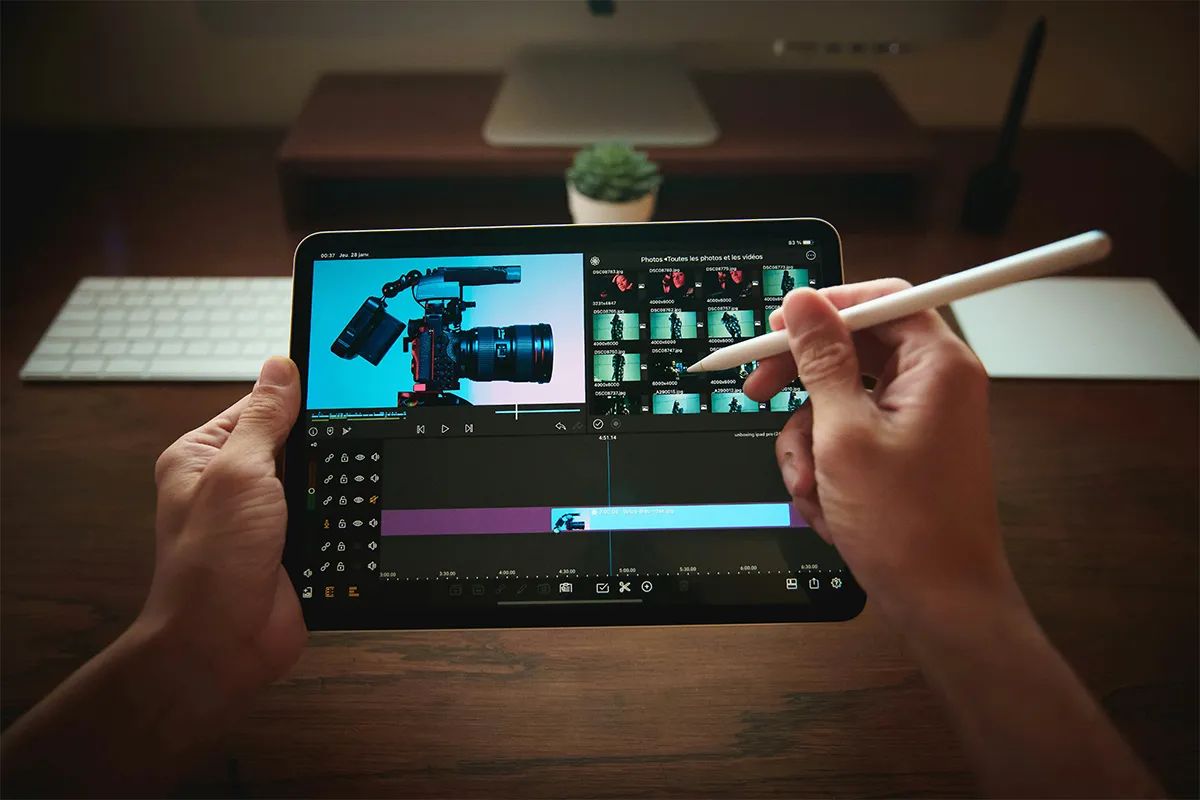
Finding a free AI video generator app is hard nowadays, when there are a number of them available. Some of them claim that they offer free credits, but actually they provide very limited, locked-key features behind a paywall, and force you to pay to avail premium features. In this post, we have carefully filtered the best apps according to their ratings and also clearly defined their free as well as paid features.
In this age of technological revolution, AI has taken the central stage in all online website-based and mobile-based applications. AI makes it easier to work and create in bulk. It takes a few seconds, whereas it took days and weeks to create a heavy clip. Just give a prompt, and all is done.
Top 10 Best Free AI Video Generator App Options for Mobile
This list is ranked to make the choice easier. Each app works on Android and iPhone. Every app gives some free use, like credits or a trial.
1. Canva
For many people, Canva feels easy from the first minute. The app uses templates, so you do not start from a blank page. Text editing is simple, and you can move items with a finger. The layout stays clean, even on a small phone screen.
When you post often, Canva can save time. Many users like it as the best AI video maker app for social media because it supports common sizes and quick exports. Free use is real, but some AI actions can have monthly limits. To understand the limits, open the AI tool you want, run one draft, and then check what the app shows about remaining uses.
Pros:
- Easy templates for mobile videos.
- Clean layouts for quick edits.
- Fast resizing for social formats.
- Simple export and sharing tools.
Cons.
- AI video clips are limited.
- Many AI tools are paid.
- Less control for complex edits.
- Can feel heavy on phones.
2. CapCut
In short videos, speed matters, and CapCut is built for speed. The app has templates, effects, auto captions, and music tools, so it can also help with AI music video generator style edits on mobile. Cutting and arranging clips is also simple. Many creators use it because it helps them get a modern look fast.
If you like ready styles, CapCut matches the mobile AI video editor with the templates needed. Some tools work for free, and some tools may be locked or limited by region. Try one template that fits your topic, replace the text, and export once. After that, you will know if the free level is enough for your style.
Pros:
- Great effects for short videos.
- Strong auto captions for creators.
- Many trendy templates to start.
- Fast cutting and timing tools.
Cons.
- Advanced AI tools are Pro.
- Some features vary by region.
- Too many options feel crowded.
- Cloud storage is limited and free.
3. Videoleap
With Videoleap, you can do more creative edits on a phone. The app lets you add layers, effects, and motion in a direct way. The screen still feels clear, even when you add more items. Many users choose it when they want more control than basic editors.
A free trial is common in Videoleap, so you can try advanced tools first. For people who start from photos, it can fit the AI image-to-video generator style of work on mobile. To judge it well, pick one idea, make one full video draft, and then replay it to see if the motion and timing look smooth. During this first run, focus on the one effect you really need, not on every effect.
Pros:
- Powerful effects and layer control.
- Good timeline editing on mobile.
- Strong creative motion style tools.
- Free trial unlocks Pro Tools.
Cons.
- Many AI tools require a subscription.
- The trial ends quickly for testing.
- Some exports are limited without Pro.
- Battery use can be high.
4. Google Gemini
Before you generate a video, planning is important. A clear idea and a simple script can improve the final result. Google Gemini can help you write a simple script, make a scene list, and create a clean prompt. Better prompts often give better video drafts in many apps.
For first-time users, Gemini supports a beginner-friendly AI video generator app workflow, even if you use another app for the final video. In some places, video features can depend on the region and plan. Checking inside the app is the easiest way to confirm what you have. After you confirm access, ask Gemini to give you three prompt versions for the same idea, then choose the one that sounds most natural.
Pros:
- Helps write scripts very fast.
- Improves prompts for video tools.
- Gives clear scene outline ideas.
- Useful for planning full videos.
Cons.
- Video features depend on rollout.
- Usage limits vary by plan.
- Not a full video editor.
- Needs other apps for export.
5. Picsart
With Picsart, style is the main point. The app is good for stickers, backgrounds, text looks, and fun effects. Many users like the quick previews, because they see the change right away. That helps when you are not sure which style fits your video.
Free access often comes as credits or limited weekly use. That makes it useful as an AI video generator app with free credits for small tries. If you create many drafts, the free credits can end fast. A helpful way to use credits is to first set your style, then generate one clip, and only then generate a second version if the first one is close to what you want.
Pros:
- Free weekly credits for AI.
- Strong stickers and style effects.
- Quick design plus video edits.
- Easy social-ready output formats.
Cons.
- Weekly credits finish very fast.
- Many tools require extra credits.
- The interface can feel very busy.
- Video editing is less advanced.
6. InVideo AI
InVideo AI is made for turning text into a video draft, so it works like an AI text-to-video generator for many common use cases. The app often works well for explainers, small ads, and business-style videos. Many steps feel guided, so you do not feel lost. You put the idea in, and the app helps build a full draft.
A free plan usually has limits, like video minutes per week or export rules. That is why it can fit as a text-to-video app free tier option for testing. To check quality, use one topic, keep the message clear, and watch the draft twice. Look at the scene match, the pacing, and the captions. If those three feel good, the tool is doing its job.
Pros:
- Turns scripts into video drafts.
- Guided workflow is easy to follow.
- Free tier lets you test.
- Includes stock media for scenes.
Cons.
- Free exports include a watermark.
- Weekly video minutes are very low.
- The AI credit limit is small.
- Less control over scene choices.
7. Bing
Bing can be useful because it is already a common mobile app for many users. In some regions, it can offer AI video features inside the app experience. Search and prompt testing are also close to each other in the same place. That can make your work feel simpler.
For quick learning, Bing can support how to make AI videos on phone tasks with less setup. Free use may have speed limits or usage caps. Start with a clear one-line prompt and generate one result. If the output feels off, change only one part of the prompt and try again. Small changes are easier to track than big changes.
Pros:
- Standard video creation is free.
- Simple text prompt video drafts.
- Fast mode option for speed.
- Easy access inside the Bing app.
Cons.
- Fast mode needs Rewards points.
- Videos are short and vertical.
- Quality can vary by prompt.
- Availability differs by country.
8. Adobe Firefly
Adobe Firefly is part of a big creative tool family. Many creators trust Adobe because the tools aim for clean output. Firefly can help with creative assets and video-related generation features, based on what you have in the app. Some users choose it when they want a more polished look.
Free use is often controlled by credits. When credits are low, you must use them with care. For some people, Firefly fits an AI avatar video app free trial type of workflow, where you try features first and decide later. One good approach is to generate one clip, save the best frame as a reference, and then use that reference to keep your next output consistent.
Pros:
- Strong creative tools in Adobe.
- Good style control for outputs.
- Free use via generative credits.
- Works across the Firefly web and mobile.
Cons.
- Credits expire after one month.
- Free credits are limited in volume.
- Premium features require paid plans.
- Availability depends on your plan.
9. Wondershare Virbo
Wondershare Virbo is focused on presenter style and business videos. The app can help when you want a clear message without filming yourself. Many people use it for training clips, product messages, and simple promo videos. The steps feel structured, which can be good for beginners.
Limited free use is common, like a trial or restricted exports. For many Android users, it can act as a free AI video generator app for Android, a test option for business clips. Write your message in three to five lines, generate a draft, then listen once for voice clarity. After export, check if the free version limits quality or adds any restrictions.
Pros:
- Good avatar spokesperson video creation.
- Logging in gives free video credits.
- Many voices and language choices.
- Useful for training and promos.
Cons.
- Free credits are very small.
- Longer videos need paid credits.
- Many templates require a subscription.
- Avatars can look less natural.
10. HeyGen
HeyGen is known for avatar videos and talking style content. A face on the screen can make the message feel more human. You mainly focus on the script and the look, then the tool creates the video. Many users try it for quick presenter videos.
Many apps say they give free credits, but some also claim no sign-up, and then ask for an account when you try to export or use the main AI feature. For iPhone users, it can fit as a free AI video generator app for iPhone test choice for avatar work. Keep the message direct, use a calm tone, and generate one draft. Then check the voice, the lip sync, and how natural the facial movement looks.
Pros:
- Strong avatar videos for presenters.
- The free plan allows three months.
- Large stock avatar library available.
- Many languages and voice options.
Cons.
- Free videos capped per month.
- Free exports limited to 720p.
- Processing is standard for free.
- Advanced features require payment.
Comparison Table: Free AI Video Generator Apps for Mobile
| App | Best For | AI Video Creation on Mobile | Free Use (Credits, Limits, or Trial) | Main Limitation to Know |
|---|---|---|---|---|
| Canva | Template-based social videos, branded posts | Yes (Create a Video Clip inside Canva AI, where available.) | Canva Free includes limited AI video clip generation (up to 5 uses per month). | AI video clip generations are limited on Canva Free, and the cap can feel tight for frequent posting. |
| CapCut | Fast short videos, captions, trendy edits | Yes (mobile editor) | CapCut promotes free AI video generation tools (availability and limits can vary by feature and region). | Some AI features can be restricted by region, account type, or feature-specific limits. |
| Videoleap | Creative effects, stylized edits | Yes | A 7-day free trial is offered for Pro features. | After the trial, many AI tools require a subscription. |
| Google Gemini | Prompt writing, scripts, and, where enabled, Veo video generation | Yes | Video generation has usage limits that depend on your plan. | Availability and limits can change by plan, region, and rollout stage. |
| Picsart | Quick creative edits, AI effects, social content | Yes | The free plan includes 5 credits per week for generative AI tools. | Weekly credits can run out quickly if you generate often. |
| InVideo AI | Script-to-video drafts, marketing explainers | Yes (mobile app exists) | Free plan: 2 video minutes per week, 1 AI credit per week, 4 exports per week with a watermark. | The free plan has watermarks and tight weekly limits. |
| Bing | Text prompt to short video drafts (Bing Video Creator) | Yes (Bing app, plus Bing Video Creator access) | Standard creation is free; fast creation usually uses Microsoft Rewards points (sometimes, free fast credits may be offered). | Fast mode often needs Rewards points, so speed can be limited on free use. |
| Adobe Firefly | Higher-quality creative generation inside the Adobe ecosystem | Yes (Firefly web and mobile) | Uses generative credits; free plans receive credits that are allocated on first use and expire after one month. | The credit system limits how much you can generate before upgrading. |
| Wondershare Virbo | Avatar spokesperson videos, training, product messages | Yes (mobile app) | Developer notes state that login gives free video credits (for example, 1 minute of free credits for each feature). | Free minutes are small, so longer projects usually require a plan. |
| HeyGen | Avatar videos and talking presenter-style clips | Yes (mobile supported) | The free plan allows up to 3 videos per month, with no credit card required. | Monthly free output is limited, so it is best for trying the workflow. |
Conclusion
To choose well, match the app to your goal. Recent academic research on text-to-video models shows how a short text prompt can produce a short video clip, which is why prompt quality matters in many apps. Canva and CapCut are strong when you want fast social videos. Videoleap and Picsart are better when you want more style control on a phone. InVideo AI and Virbo can be good when you want a clear business message with guided steps.
Free limits can still help a lot if you use them in a smart way. Credits and trials are enough for checking quality and learning the workflow. After you try two or three apps, pick one and use it for a full week. With practice, the steps feel easier, and your results become more consistent over time.